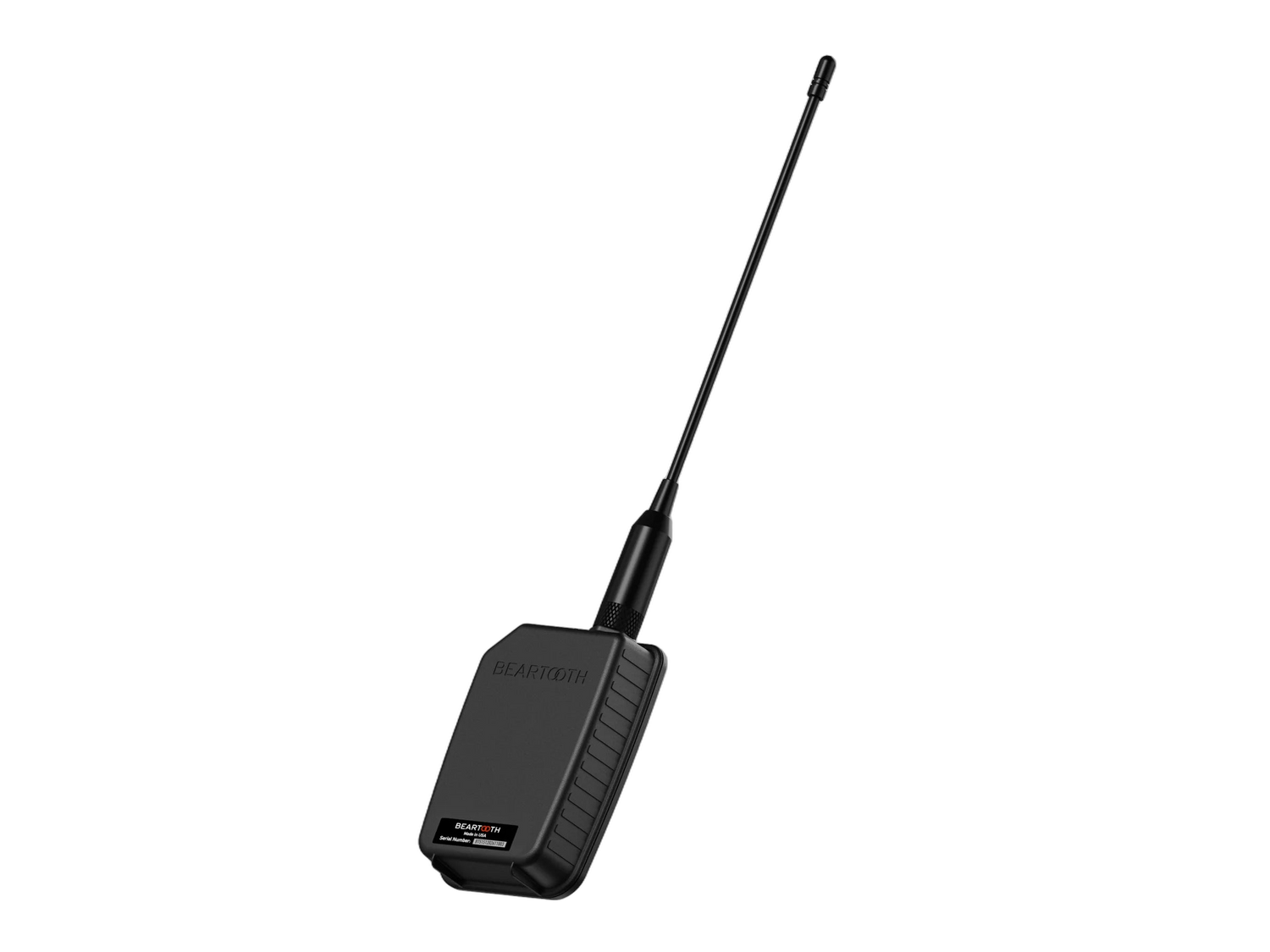
Beartooth Getting Started Guide
Android
- Load ATAK and open the navigation drawer
- Tap the Plugins icon

- Find the beartooth plugin and make sure the checkbox is selected

- Go back to the map view and tap the beartooth icon

- Select the device you wish to connect to

- Once paired you will be able to set a custom network ID and encryption if you desire

- Tap on the contacts icon
- Select Beartooth Broadcast

- Here you can share your location, send messages, as well as send voice messages

- Tap on the target icon to manually send a location message to the beartooth group
- The Tap to speak button is used for voice to text
- PTT allows you to send actual voice messages like a standard radio
- To share markers after placement, select the marker, tap send, and select Beartooth Broadcast to send the marker to the whole Beartooth group or you can select individual recipients. Pictures can be sent the same way
- To create Beartooth groups, tap the beartooth icon on the map view.
- Scroll down and you will see Add beartooth group. Tap that, name your group, and add desired contacts to that specific group

- Beartooth can also be used without a phone to be used like a relay to extend coverage.
- To do this power on a separate beartooth, tap the beartooth icon on your ATAK device, tap Add Beartooth device on map and scan the QR code of the Beartooth device

IOS
- Download and install Beartooth MK II App
- Open Beartooth MK II App and select SERVER
- Connect your Beartooth device (This must be done before opening iTAK each time)
- Add these server certificates to iTAK


- Select Upload Server Package and use the certificates downloaded above